> ## Documentation Index
> Fetch the complete documentation index at: https://chainpatrol.com/docs/llms.txt
> Use this file to discover all available pages before exploring further.
# Telegram Bot
> A Telegram bot that can be used to submit scam reports to ChainPatrol
If you have a **Telegram group**, you can use the ChainPatrol Telegram Bot to let your group members submit scam reports to **ChainPatrol**. The bot will generate new reports that get sent to your admin dashboard for review.
## Setup
### Bot Installation
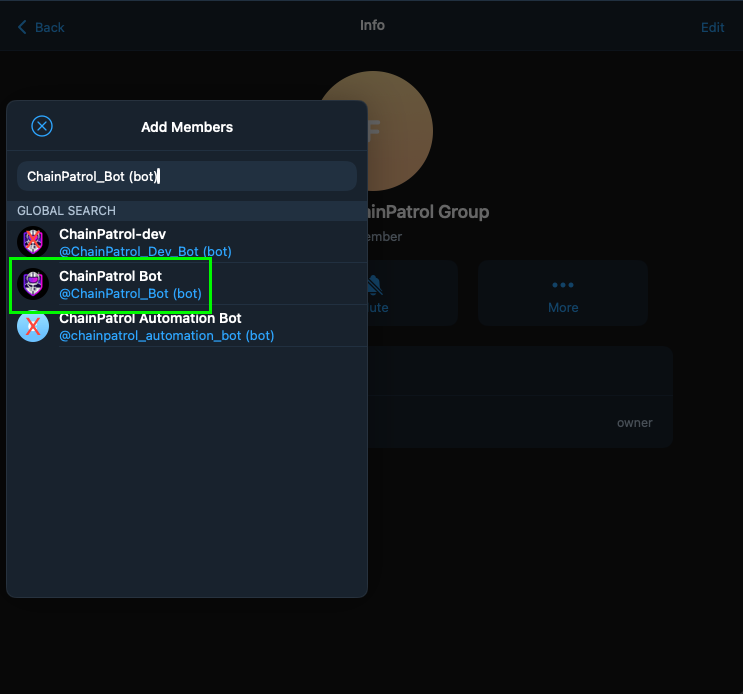
**Beware of impersonators!** The official ChainPatrol Telegram bot is `@ChainPatrol_Bot`. If you see any other bot claiming to be the ChainPatrol bot, please report it to us.
Start by adding the ChainPatrol Telegram Bot to your group chat. You can find the bot by searching for its username in Telegram.
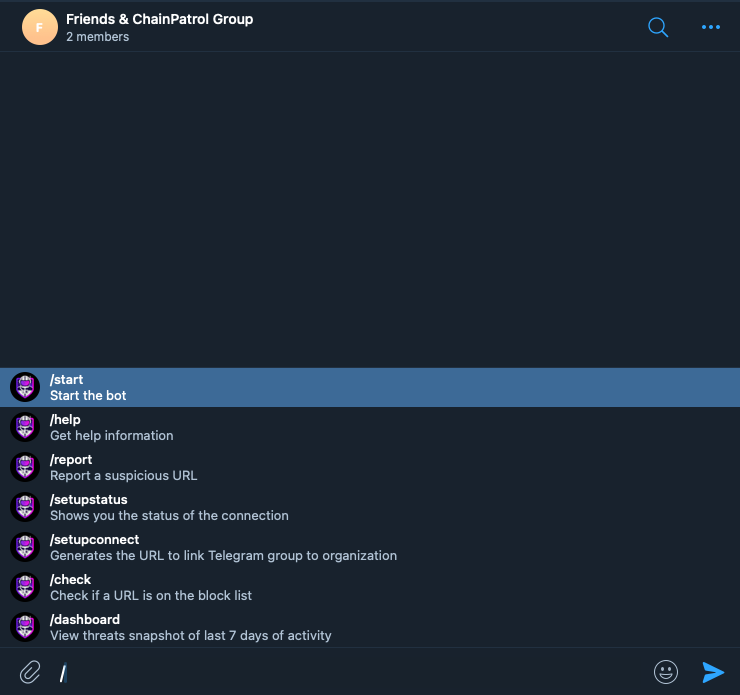
 Once the bot is added to your group chat, use the `/help` command to see the available commands.
 ### Bot Configuration
 Visit your [ChainPatrol Dashboard](https://app.chainpatrol.io/admin) and go to the **settings** page.
If you don't have a ChainPatrol account and want to protect your community, reach out to us directly!
Visit your [ChainPatrol Dashboard](https://app.chainpatrol.io/admin) and go to the **settings** page.
If you don't have a ChainPatrol account and want to protect your community, reach out to us directly!
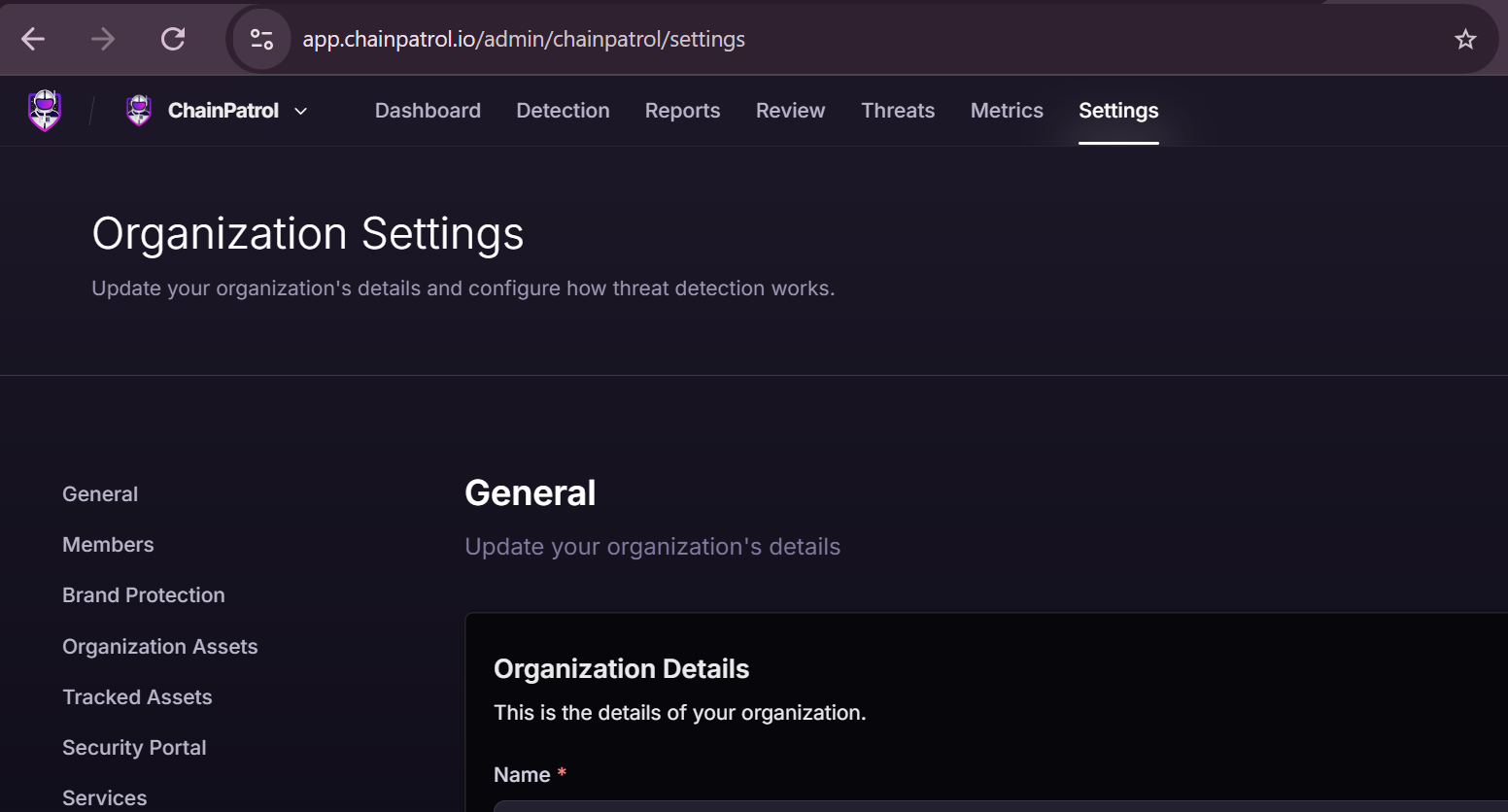 Go to the **Integrations** on the left sidebar.
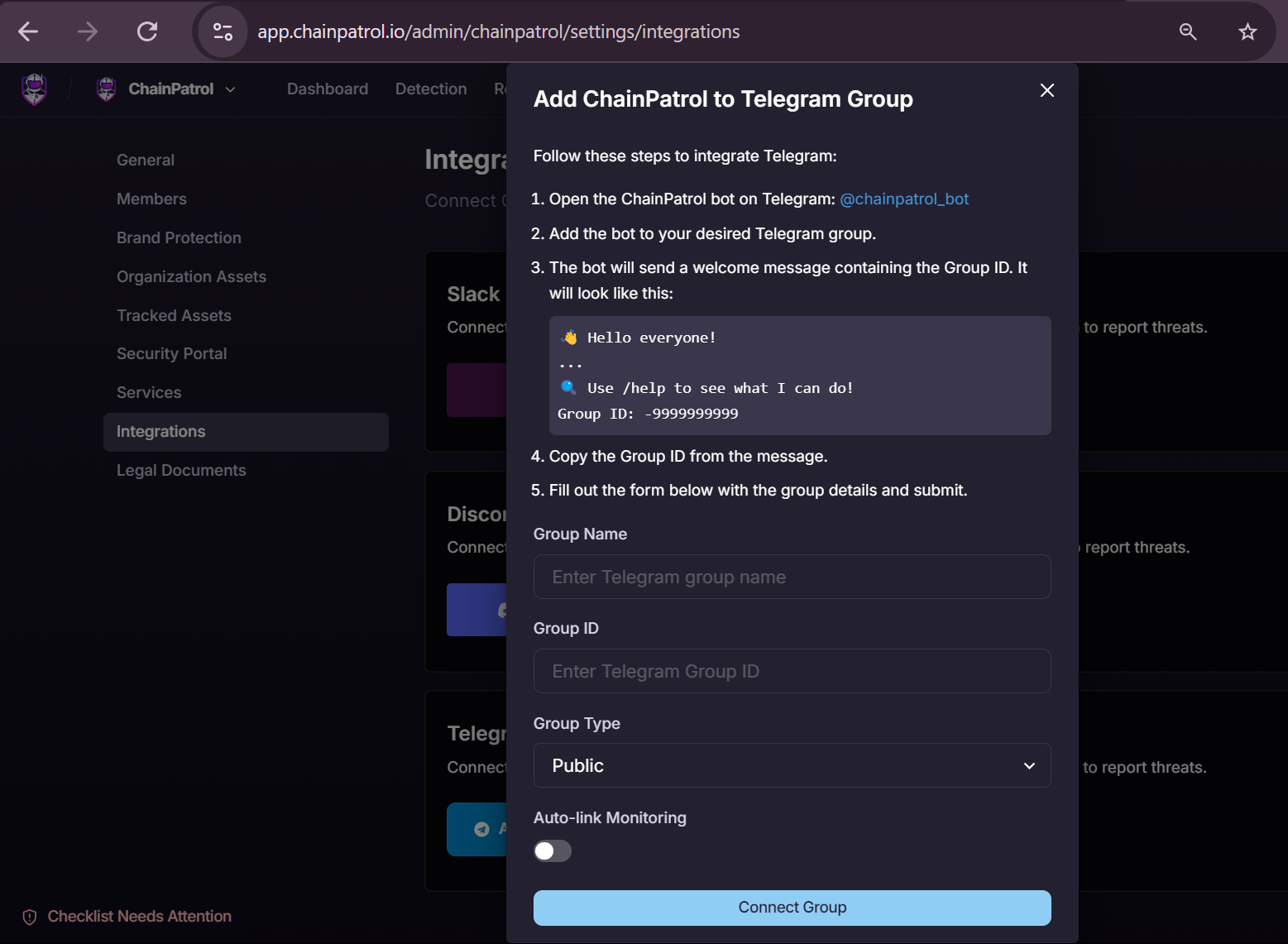
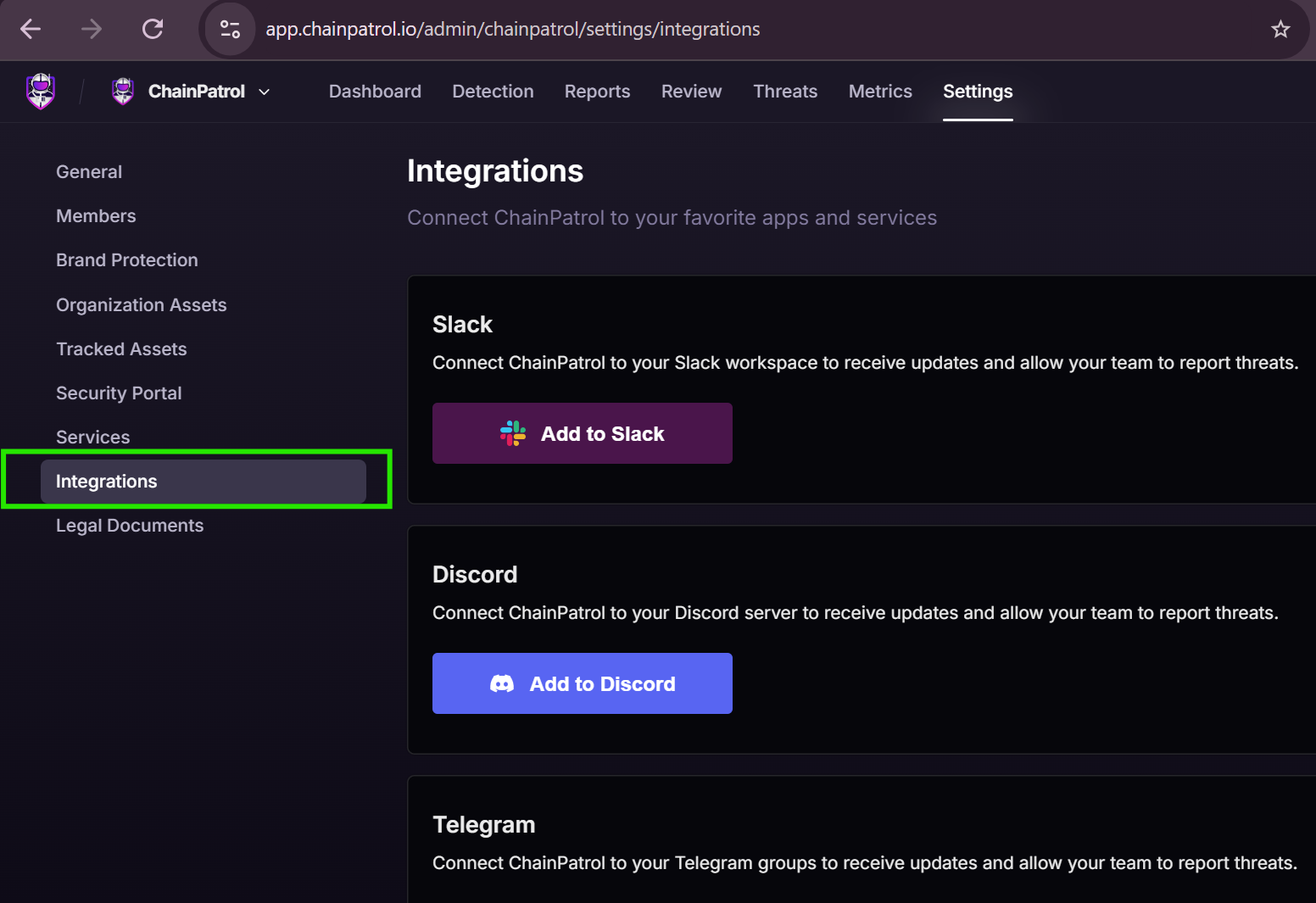 Click on "Add New Telegram Group" and configure the group details.
 ## Usage
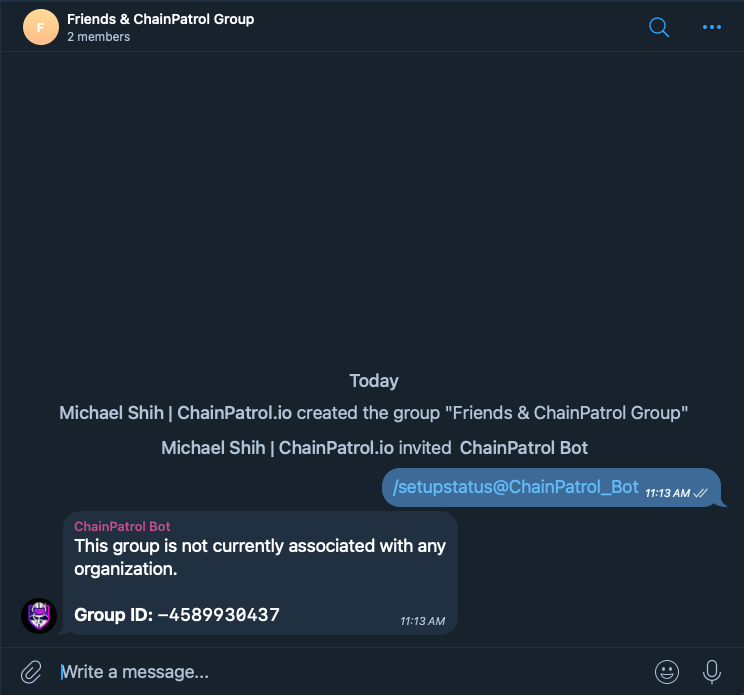
Use the `/setupconnect` command to confirm the connection between your group and ChainPatrol.
Once the bot is added to your group and the connection process is complete, you can use the following commands:
### Commands
* `/report ` - Submit a scam report for the given URL with a brief description of why it's suspicious
* `/check ` - Check if a URL is on the block list
* `/setupstatus` - Find out if this chat group is associated with an organization
* `/setupconnect` - Generates the URL to link Telegram group to organization
* `/help` - Display a list of available commands and their descriptions
## Features
### Auto-Link Monitoring
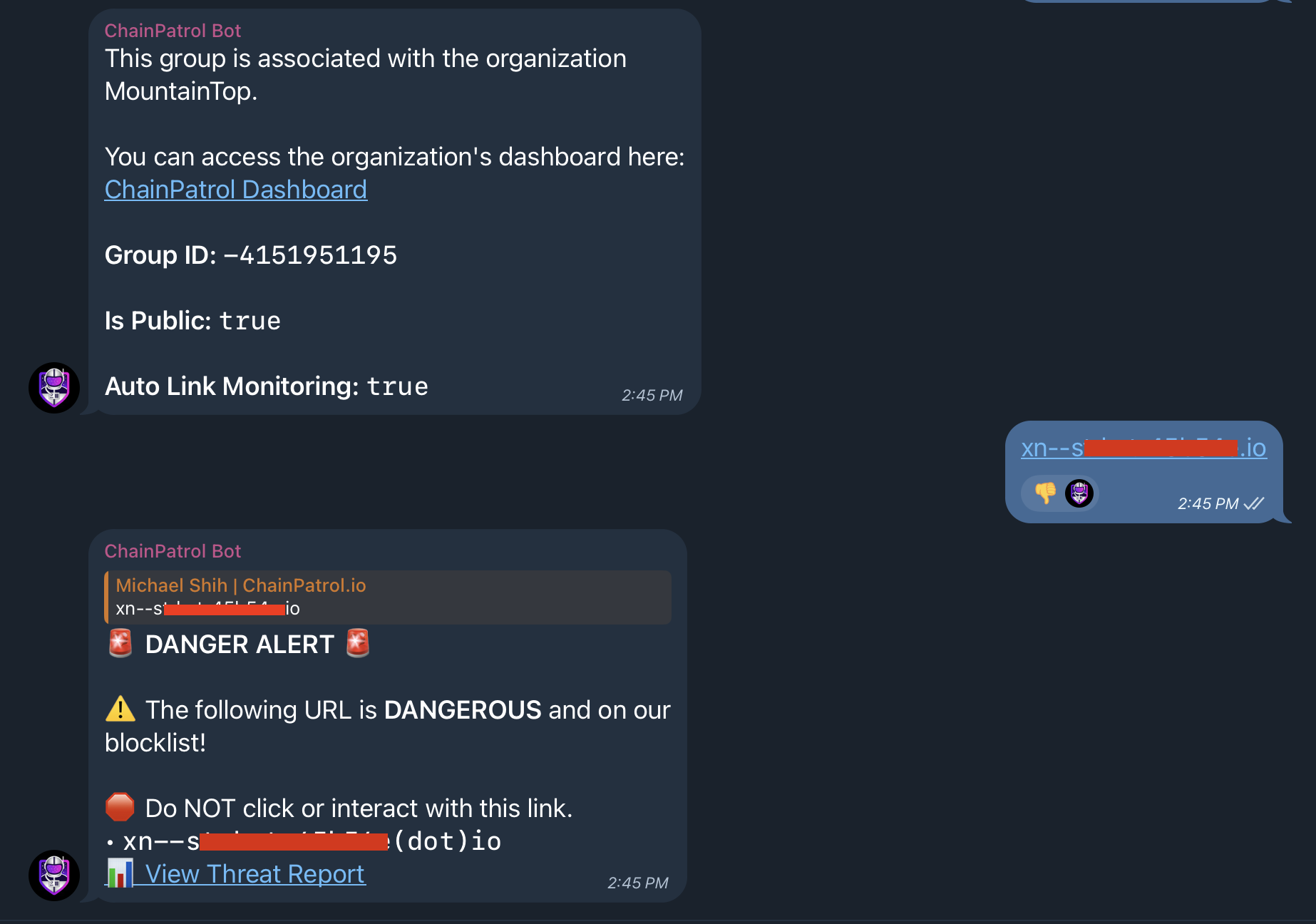
The ChainPatrol Telegram Bot automatically monitors all links shared in your group chat. This feature provides an additional layer of protection for your community:
* **Real-time Scanning**: Every link posted in the group is instantly checked against ChainPatrol's extensive database of known scams and malicious URLs.
* **Automatic Alerts**: If a potentially harmful link is detected, the bot immediately notifies the group, warning members about the potential risk.
* **Proactive Protection**: This feature helps prevent scams before they can affect your community members, even if no moderators are actively monitoring the group.
## Usage
Use the `/setupconnect` command to confirm the connection between your group and ChainPatrol.
Once the bot is added to your group and the connection process is complete, you can use the following commands:
### Commands
* `/report ` - Submit a scam report for the given URL with a brief description of why it's suspicious
* `/check ` - Check if a URL is on the block list
* `/setupstatus` - Find out if this chat group is associated with an organization
* `/setupconnect` - Generates the URL to link Telegram group to organization
* `/help` - Display a list of available commands and their descriptions
## Features
### Auto-Link Monitoring
The ChainPatrol Telegram Bot automatically monitors all links shared in your group chat. This feature provides an additional layer of protection for your community:
* **Real-time Scanning**: Every link posted in the group is instantly checked against ChainPatrol's extensive database of known scams and malicious URLs.
* **Automatic Alerts**: If a potentially harmful link is detected, the bot immediately notifies the group, warning members about the potential risk.
* **Proactive Protection**: This feature helps prevent scams before they can affect your community members, even if no moderators are actively monitoring the group.
 ## Privacy
The bot does not collect any personal information. It only collects the URL and the Telegram ID of the user that submitted the report (in case a moderator needs more information about why the URL is a scam). The bot does not store any sensitive information about the group it is added to.
The ChainPatrol Telegram bot is like any group user. You can adjust permissions
according to your group's needs.
## Privacy
The bot does not collect any personal information. It only collects the URL and the Telegram ID of the user that submitted the report (in case a moderator needs more information about why the URL is a scam). The bot does not store any sensitive information about the group it is added to.
The ChainPatrol Telegram bot is like any group user. You can adjust permissions
according to your group's needs.