> ## Documentation Index
> Fetch the complete documentation index at: https://chainpatrol.com/docs/llms.txt
> Use this file to discover all available pages before exploring further.
# Slack Bot
> A Slack bot that can be used to submit scam reports to ChainPatrol
If you have a **Slack workspace**, you can use the ChainPatrol Slack Bot to let your workspace members submit scam reports to **ChainPatrol**. The bot will generate new reports that get sent to your admin dashboard for review.
## Setup
### Bot Installation
Start by opening your dashboard on the [ChainPatrol app](https://app.chainpatrol.io/).
 In the navbar, select **Settings** to go to your **Organization Settings** page.
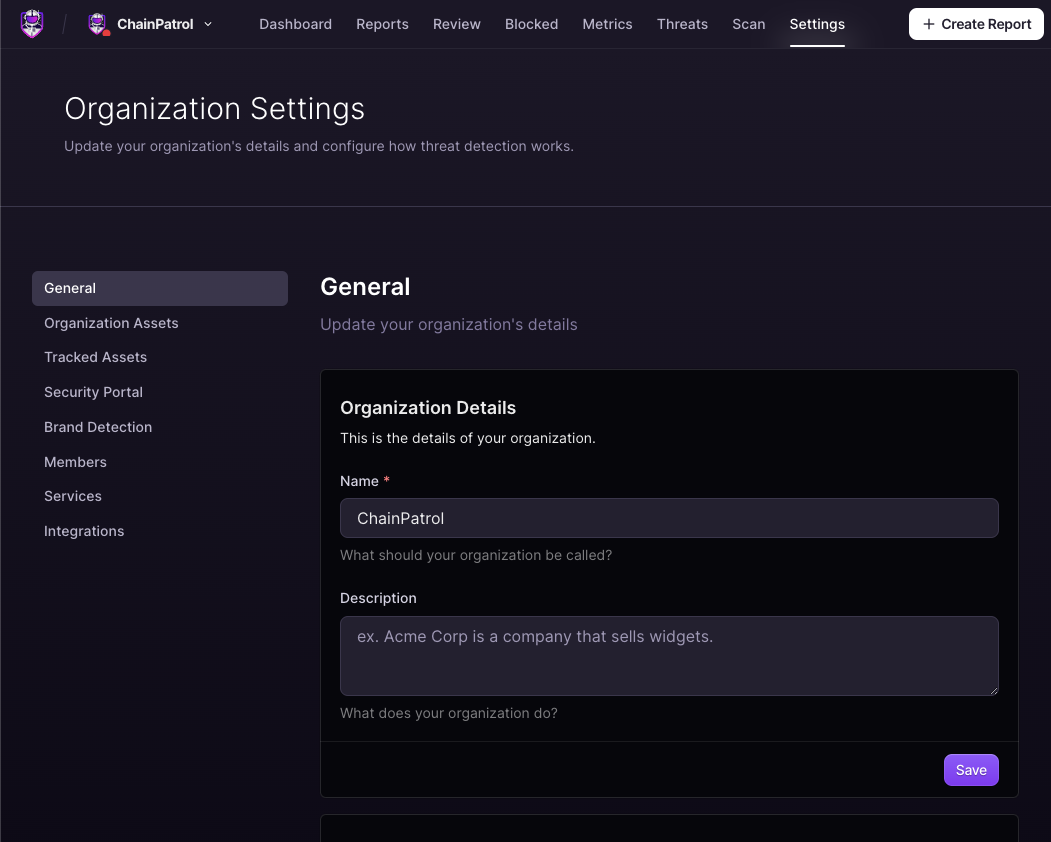 Once you are in the organization settings, navigate to the **Integrations** tab. This section contains options for the Slack bot as well as other integrations.
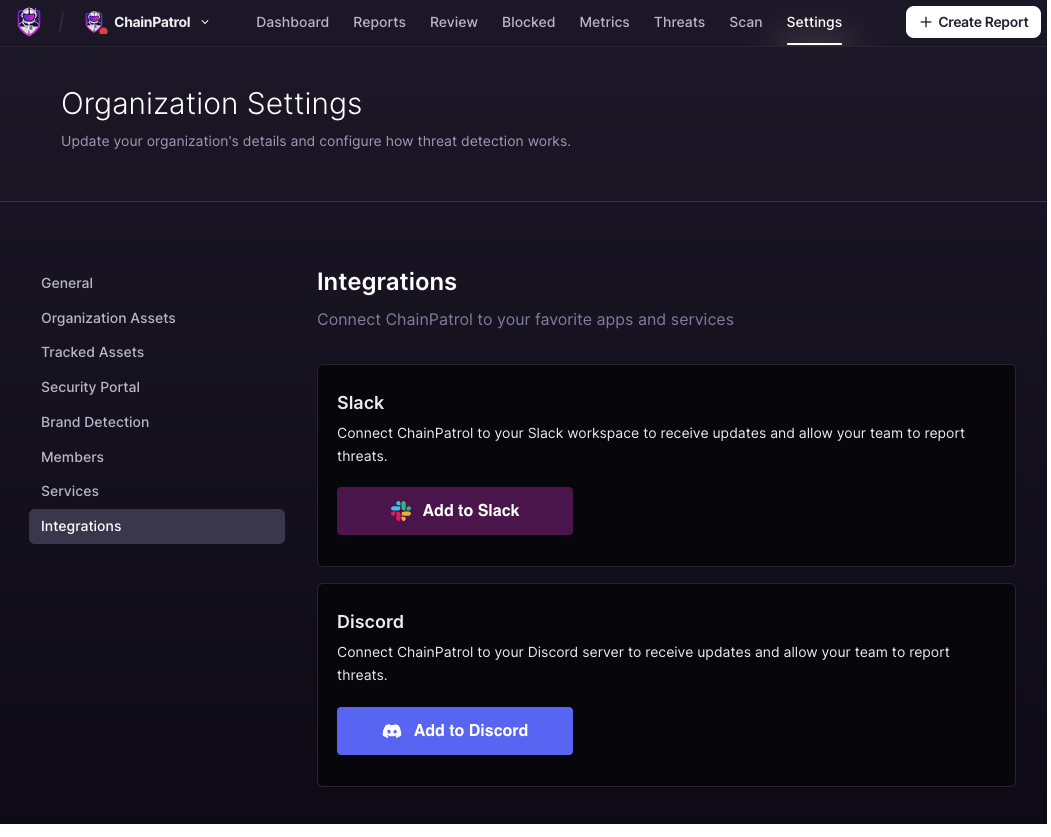 In the Integrations tab, you will find an option to **Add to Slack**. Click this button, then you will be redirected to the Slack authorization page. Click **Allow**.
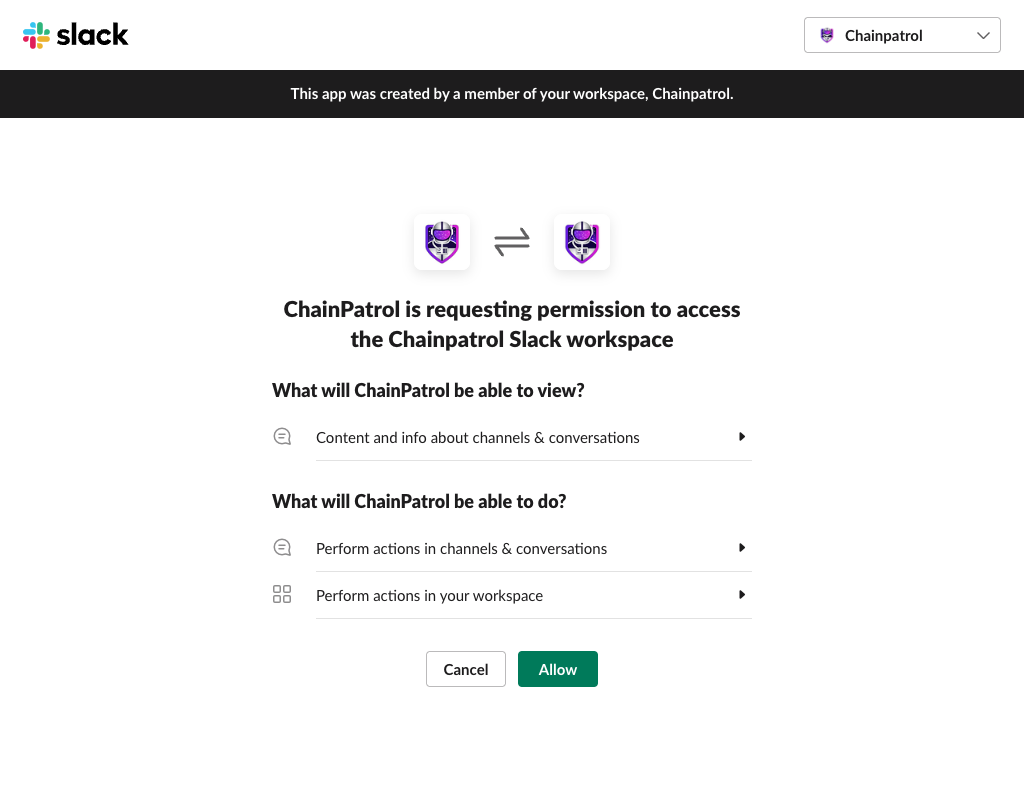 Remember to select the correct workspace at the top right of the authorization page.
**Important**: Please avoid using organization-level installs for the
ChainPatrol Slack Bot. Organization-level and enterprise installs can cause
issues with the bot's functionality and may not properly integrate with your
ChainPatrol dashboard. Always use workspace-level installations to ensure
proper operation.
## Confirmation and Finalization
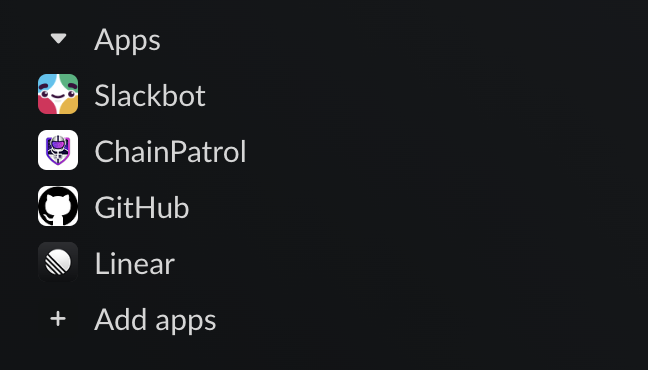
The ChainPatrol Slack Bot should appear in your listed apps along with other allowed workspace apps.
Remember to select the correct workspace at the top right of the authorization page.
**Important**: Please avoid using organization-level installs for the
ChainPatrol Slack Bot. Organization-level and enterprise installs can cause
issues with the bot's functionality and may not properly integrate with your
ChainPatrol dashboard. Always use workspace-level installations to ensure
proper operation.
## Confirmation and Finalization
The ChainPatrol Slack Bot should appear in your listed apps along with other allowed workspace apps.
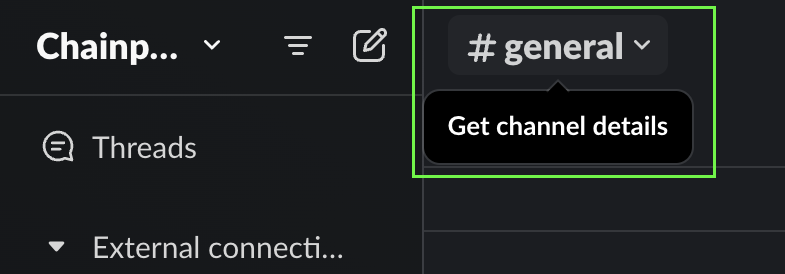
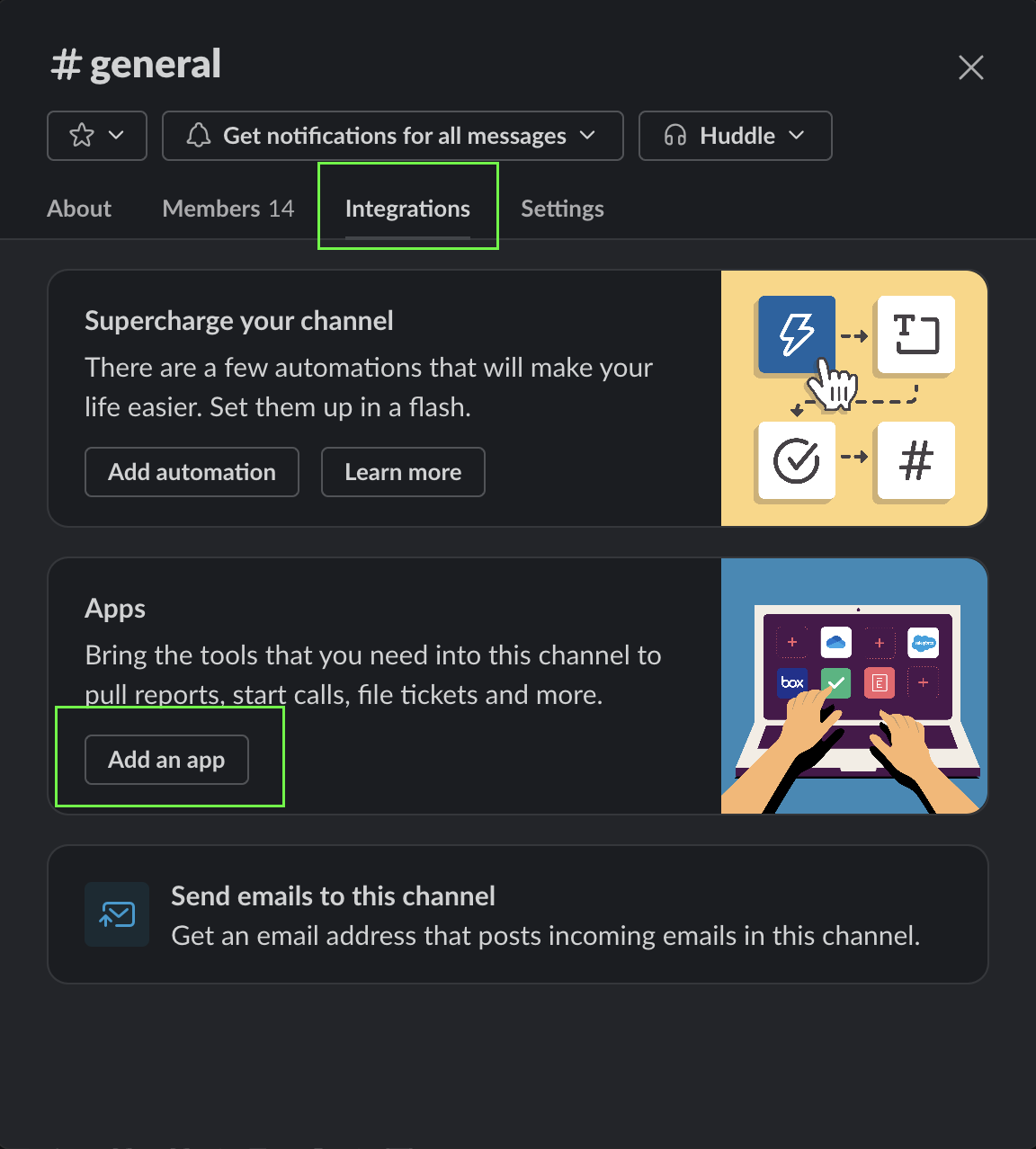
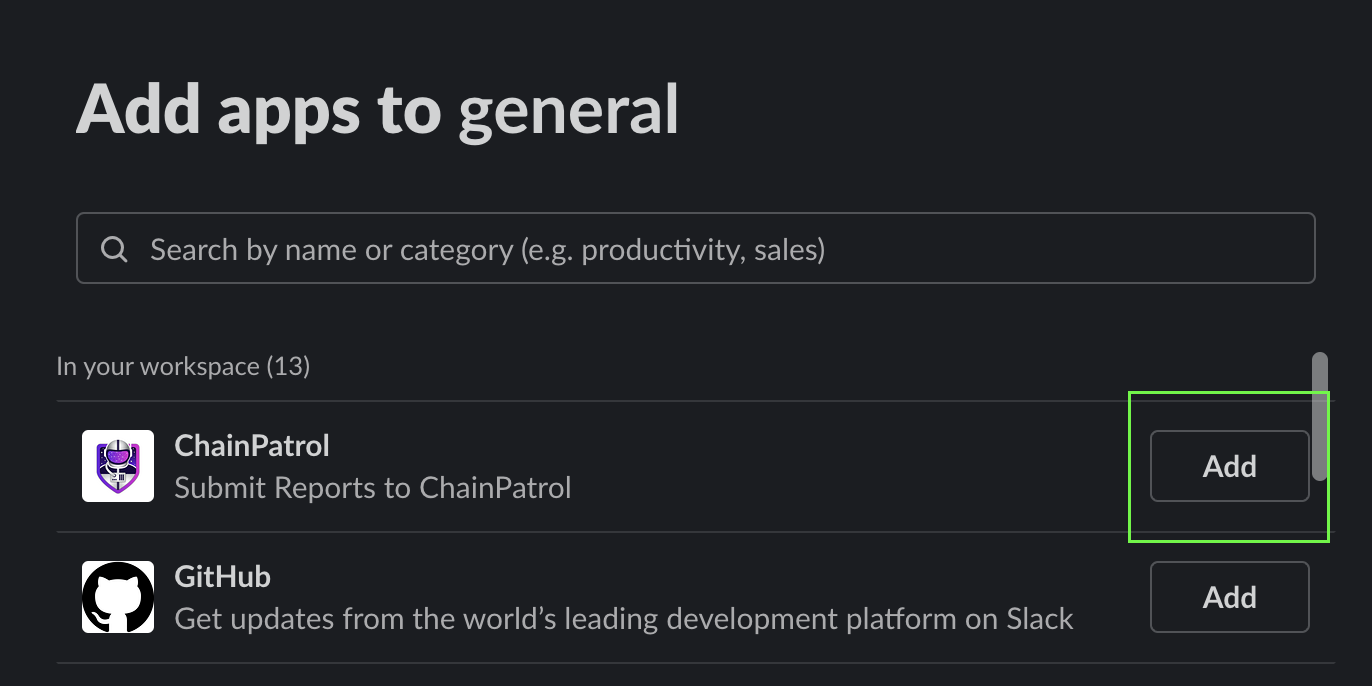
 ### Adding ChainPatrol Bot To Your Reporting Channel
Remember to add the slack bot to the reporting channel! By default, the
ChainPatrol bot does not automatically read and join existing channels for
privacy.
### Adding ChainPatrol Bot To Your Reporting Channel
Remember to add the slack bot to the reporting channel! By default, the
ChainPatrol bot does not automatically read and join existing channels for
privacy.
 ### Link Organization
This step needs to be done with help from ChainPatrol staff in order for the
Slack Bot to work properly.
**Please send ChainPatrol staff your workspace's Slack Team ID so that we can finish the automated pipeline.**
* Follow [Slack's documentation](https://slack.com/intl/en-gb/help/articles/221769328-Locate-your-Slack-URL-or-ID#free,-pro-and-business+-subscriptions-2) to locate your Team ID.
Slack refers to the Team ID as "workspace or org ID".
`https://app.slack.com/client/TXXXXXXX/CXXXXXXX`
In the above URL, the Team ID is the slug that begins with `T`.
## Usage
Once the bot is added to your workspace and you have **sent ChainPatrol your Team ID**, you can use the following actions:
### Slash Commands
* `/chainpatrol ` - Submit a scam report for the given URL
### Shortcut Actions
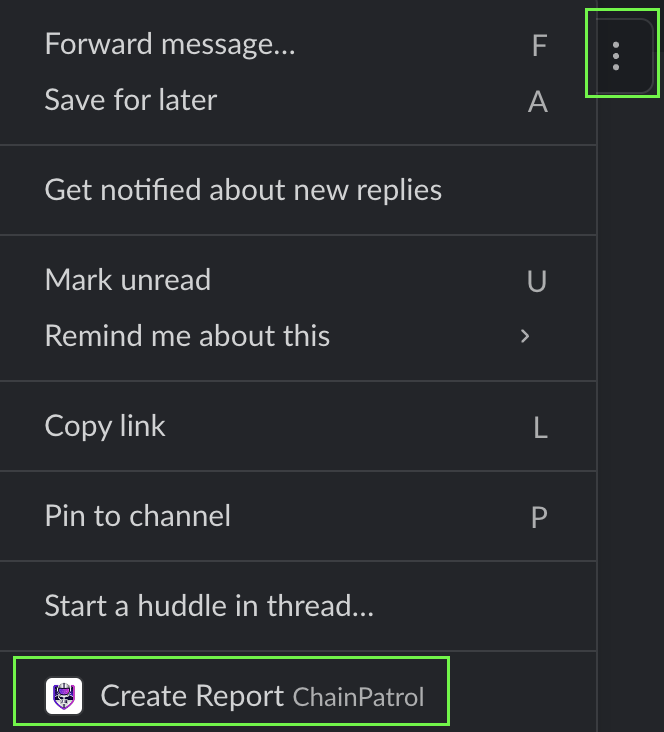
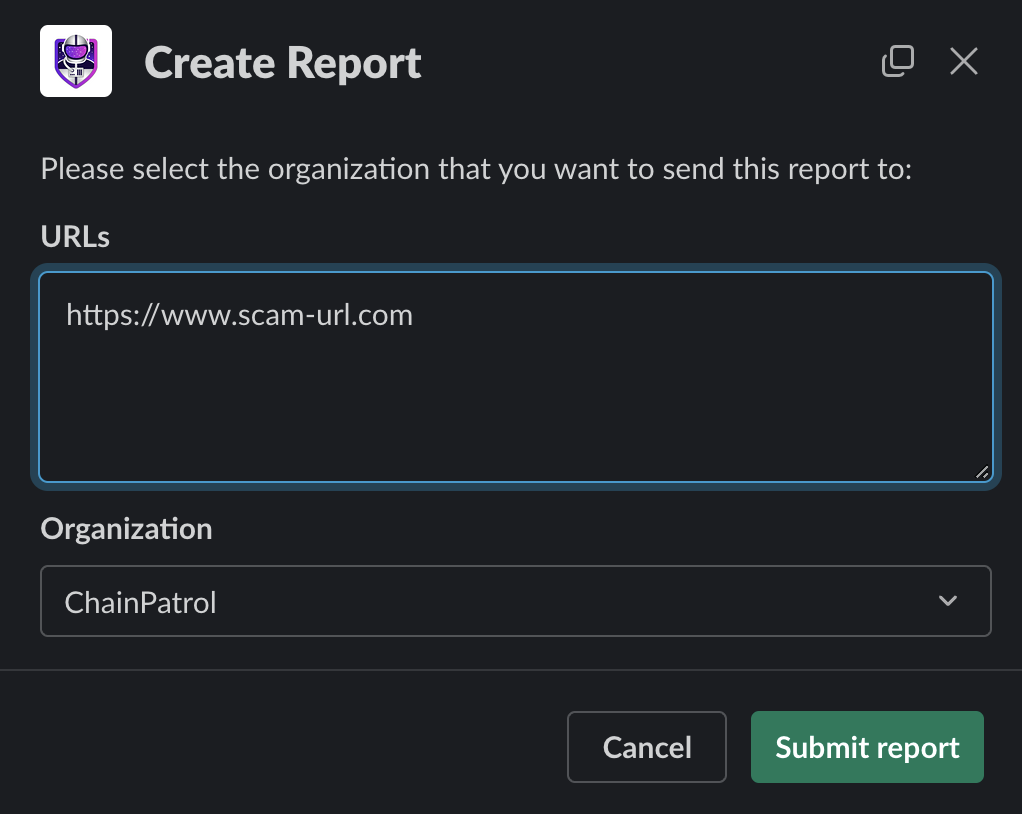
For a given message, click on the kebab menu and then select the `Create Report` option.
### Link Organization
This step needs to be done with help from ChainPatrol staff in order for the
Slack Bot to work properly.
**Please send ChainPatrol staff your workspace's Slack Team ID so that we can finish the automated pipeline.**
* Follow [Slack's documentation](https://slack.com/intl/en-gb/help/articles/221769328-Locate-your-Slack-URL-or-ID#free,-pro-and-business+-subscriptions-2) to locate your Team ID.
Slack refers to the Team ID as "workspace or org ID".
`https://app.slack.com/client/TXXXXXXX/CXXXXXXX`
In the above URL, the Team ID is the slug that begins with `T`.
## Usage
Once the bot is added to your workspace and you have **sent ChainPatrol your Team ID**, you can use the following actions:
### Slash Commands
* `/chainpatrol ` - Submit a scam report for the given URL
### Shortcut Actions
For a given message, click on the kebab menu and then select the `Create Report` option.
 ## Threats Feed Configuration
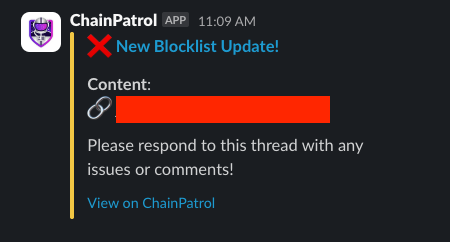
In addition to submitting reports, the ChainPatrol Slack Bot can also send automated notifications about threats and reports to your Slack channels. This creates a real-time threats feed that keeps your team informed about security activity.
## Threats Feed Configuration
In addition to submitting reports, the ChainPatrol Slack Bot can also send automated notifications about threats and reports to your Slack channels. This creates a real-time threats feed that keeps your team informed about security activity.
 ### Setting Up Notification Settings
Create a dedicated channel in your Slack workspace for receiving ChainPatrol threat notifications. This channel will serve as your organization's security feed for real-time threat intelligence.
### Setting Up Notification Settings
Create a dedicated channel in your Slack workspace for receiving ChainPatrol threat notifications. This channel will serve as your organization's security feed for real-time threat intelligence.
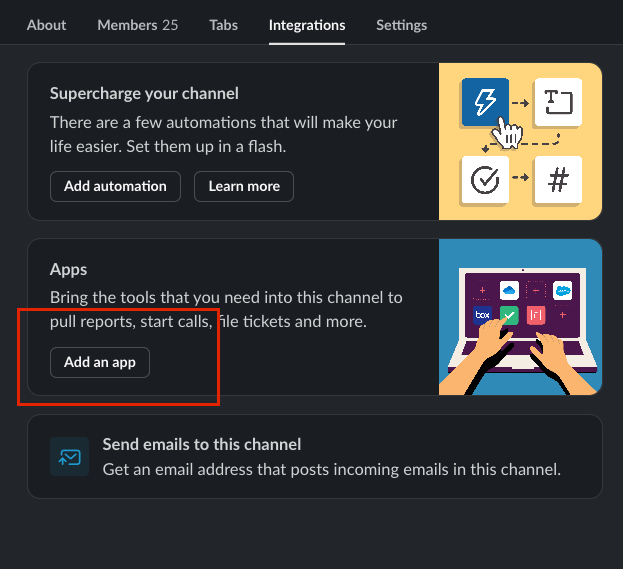 **Important**: You must add the ChainPatrol bot to this channel for notifications to work properly. The bot cannot automatically join channels for privacy and security reasons.
Contact ChainPatrol staff with your notification channel's Channel ID to complete the integration setup. The Channel ID is a unique identifier that begins with "C" and can be found in your channel's details.
To find your Channel ID, right-click on the channel name and select "View channel details" or check the URL when viewing the channel in your browser.
Navigate to your ChainPatrol dashboard and go to **Settings** > **Integrations** to configure your notification preferences.
Within the Integrations tab, locate the **Notification Settings** section to customize which types of security alerts your team receives.
**Important**: You must add the ChainPatrol bot to this channel for notifications to work properly. The bot cannot automatically join channels for privacy and security reasons.
Contact ChainPatrol staff with your notification channel's Channel ID to complete the integration setup. The Channel ID is a unique identifier that begins with "C" and can be found in your channel's details.
To find your Channel ID, right-click on the channel name and select "View channel details" or check the URL when viewing the channel in your browser.
Navigate to your ChainPatrol dashboard and go to **Settings** > **Integrations** to configure your notification preferences.
Within the Integrations tab, locate the **Notification Settings** section to customize which types of security alerts your team receives.
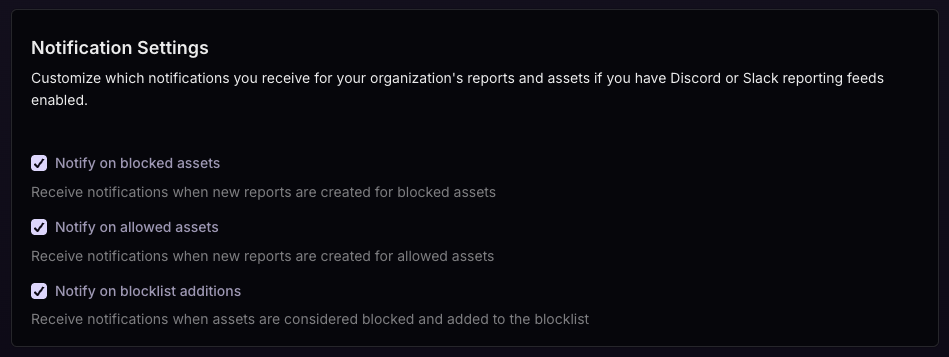 Choose which notifications you want to receive for your organization's reports and monitored assets. Each option serves different security monitoring needs as detailed below.
### Notification Options
Receive notifications when new reports are created for assets that are
already on your blocklist. This helps you track ongoing threats and see when
community members are encountering known malicious content.
Receive notifications when new reports are created for assets that are
currently on your allowlist. This can help identify potential false
positives or assets that may need review if they're receiving multiple
reports.
Receive notifications when assets are confirmed as threats and added to the
blocklist. **This is the most critical notification type** - when you see
this alert, it means ChainPatrol's systems have confirmed a threat and are
actively working to process it for takedown and blocklist distribution.
**Recommended Configuration**: We recommend enabling all three notification
types for comprehensive threat monitoring. However, if you want to focus on
the most critical alerts, option 3 (Assets Added to Blocklist) provides
notifications specifically for confirmed threats rather than just reports.
Notification settings only take effect if you have Discord or Slack reporting
feeds enabled through the bot integration.
## Privacy
The bot does not collect any personal information. It only collects the URL and the Slack ID of the user that submitted the report (in case a moderator needs more information about why the URL is a scam). The bot does not store any sensitive information about the workspace it is added to.
Choose which notifications you want to receive for your organization's reports and monitored assets. Each option serves different security monitoring needs as detailed below.
### Notification Options
Receive notifications when new reports are created for assets that are
already on your blocklist. This helps you track ongoing threats and see when
community members are encountering known malicious content.
Receive notifications when new reports are created for assets that are
currently on your allowlist. This can help identify potential false
positives or assets that may need review if they're receiving multiple
reports.
Receive notifications when assets are confirmed as threats and added to the
blocklist. **This is the most critical notification type** - when you see
this alert, it means ChainPatrol's systems have confirmed a threat and are
actively working to process it for takedown and blocklist distribution.
**Recommended Configuration**: We recommend enabling all three notification
types for comprehensive threat monitoring. However, if you want to focus on
the most critical alerts, option 3 (Assets Added to Blocklist) provides
notifications specifically for confirmed threats rather than just reports.
Notification settings only take effect if you have Discord or Slack reporting
feeds enabled through the bot integration.
## Privacy
The bot does not collect any personal information. It only collects the URL and the Slack ID of the user that submitted the report (in case a moderator needs more information about why the URL is a scam). The bot does not store any sensitive information about the workspace it is added to.